 HubShots
HubShots Episode 313: HubSpot Ads Tool Tutorial
In this edition we dive into a complete guide to integrating, managing and reporting on paid ads in HubSpot.


This edition we dive into AI in HubSpot, and cover:
How to consume HubShots:
Did a colleague forward this episode to you? Sign up here to get yours every Friday.
Recommended Resources:
Listen on Spotify:
Watch on YouTube:
Recorded: Wednesday 10 December 2025 | Published: Friday 12 December 2025
The whole topic of AI is much more than just ‘features to try’ in HubSpot.
Whilst playing with the new AI tools is certainly fun (and potentially productive) there’s also issues to consider.
People’s expectations around AI have changed over the past year. At the start of the year (in my experience) there was a hunger and even FOMO about using AI (within HubSpot and in other tools). Expectations were high, and whilst there was an understanding that AI tools could hallucinate, it wasn’t really an issue in people’s minds.
Fast forward to the end of the year, and many people are jaded with AI. They’re sick of all the AI slop on social networks, useless blogs and content, customer support that is little more than AI drivel, all coupled with their own experiences of frustration with tools producing low quality output. Plus, they’re realising that the ‘advice’ they took from ChatGPT for how to set up segments, workflows, lifecycle stages etc is coming back to bite them.
And to top it off, there’s an overwhelming onslaught of new releases in HubSpot (and every other tool/platform they use) that is instilling general exhaustion.
There’s a wariness around AI now - will it provide any benefit, or will it just waste my time? How do we avoid all the noise and just focus on the signal, the actual benefits?
But it doesn’t stop there…
A year ago, people were playing with AI, with little corporate oversight. ChatGPT (Copilot, Gemini, etc) accounts were handed out for teams to ‘pilot’ and see if any of the AI spaghetti thrown against the wall actually stuck.
These days companies are wising up and checking what the AI accounts are getting access to. Systems are getting locked down, and managers are asking for clearer reporting on what the AI tools are providing in terms of real ROI.
AI roadmaps, policies and change management procedures are now much more commonplace in the mid-large companies (where previously they were only found in larger enterprises).
And then there’s the laggards. The companies and users who haven’t even touched AI except to interact with a Google Search overview. You’ll spot these people easily - they’re the ones forwarding you a video that is obviously AI generated, or telling you how they’ve just discovered that ChatGPT can generate an email reply for them. These people aren’t anti-AI, they’re just snowed under doing whatever it is they need to to make it through the day.
But each day they put off AI is another step backwards in the pressure to stay relevant.
So, what to do?
This episode isn’t about how to be an AI first company (or whatever nonsense term gets bandied about this week), that’s for you personally to work hard at.
But what we can suggest is as follows:
In years gone by, you could safely avoid beta releases, leaving them to the nerds in the business to play with.
These days, you need to be checking the betas regularly, staying up to speed on what is rolling out each month (or each week if possible).
When in a period of rapid change, survival is often just a matter of staying one step ahead of those around you. Some beta releases give you this (for example: Meeting recorder, Marketing Studio).
Don’t avoid the beta releases, review them and strategically embrace.
There’s an irony of sorts that every platform is cramming so much AI into their products, that one of the ‘features’ they add is an AI chat interface so you can ask how to do something.
The race to cram so many new features into products has created so much complexity, that the only way to help has been to cram even more AI into them to explain how to navigate the complexity.
AI was supposed to make our lives easier, but often it’s just made them more complex.
With all the above said, let’s now focus the rest of the show on going through the key AI tools and features in HubSpot.
The content in this episode is all from our HubSpot AI course in the HubShots Community.
We’re recording this in early December 2025, which of course means it will be out of date in a few weeks (!), so make sure you keep up to date with our HubSpot Updates that Matter course in the HubShots Community as well.
Let’s cover the basics first, the general AI tools that have been rolled out through the platform.
Data Enrichment (of contacts and companies) is now included for any portal with a paid seat.
The enrichment pulls from HubSpot’s 200+M dataset of contacts and companies to fill in details such as title, demographics. Full list of enrichment items is available here.
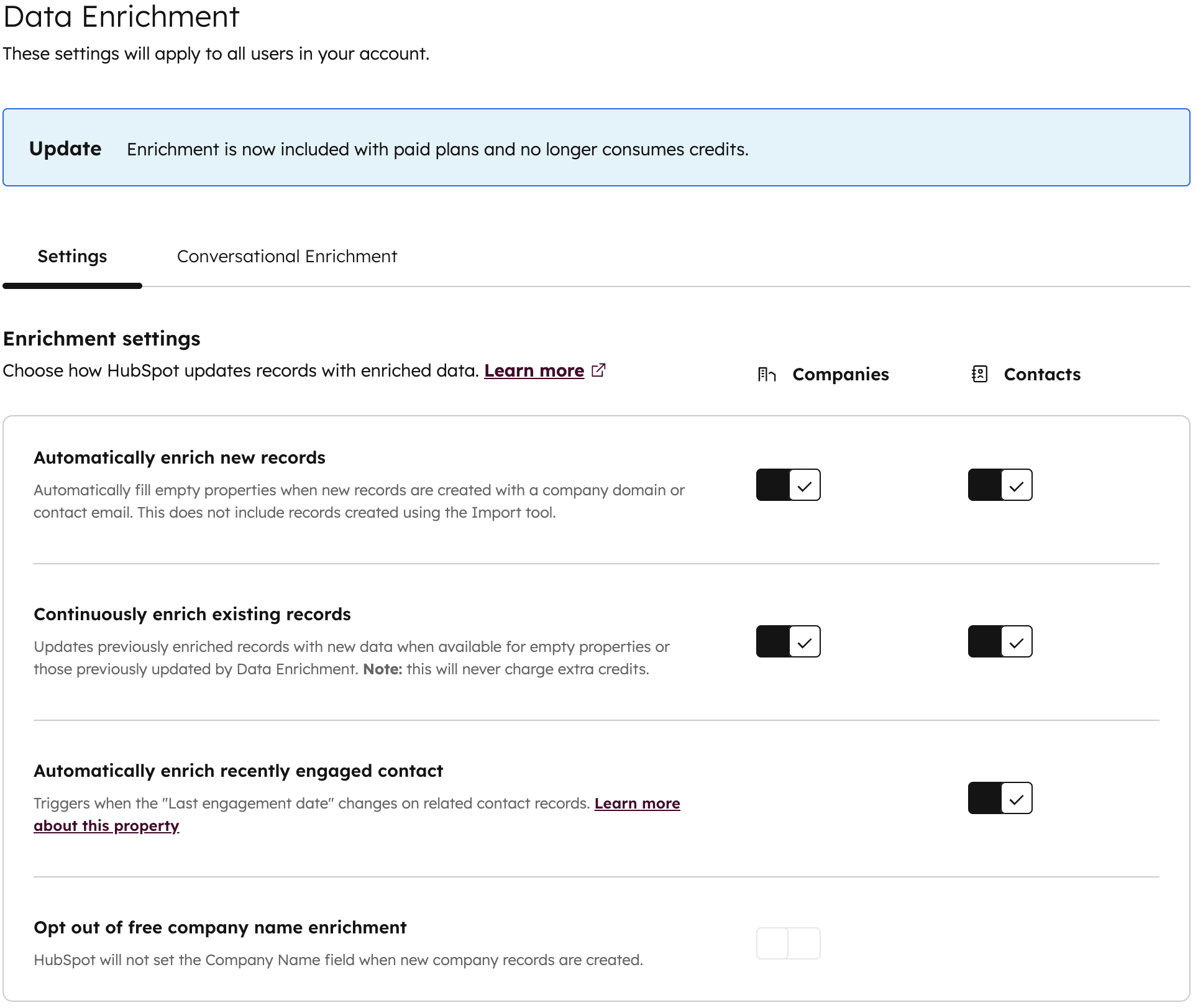
Previously Data Enrichment used to consume credits, but this was removed in September (during INBOUND).
However, other AI related items do consume credits.
You can see usage and manage limits from your HubSpot Credits dashboard (available from your top right profile menu:
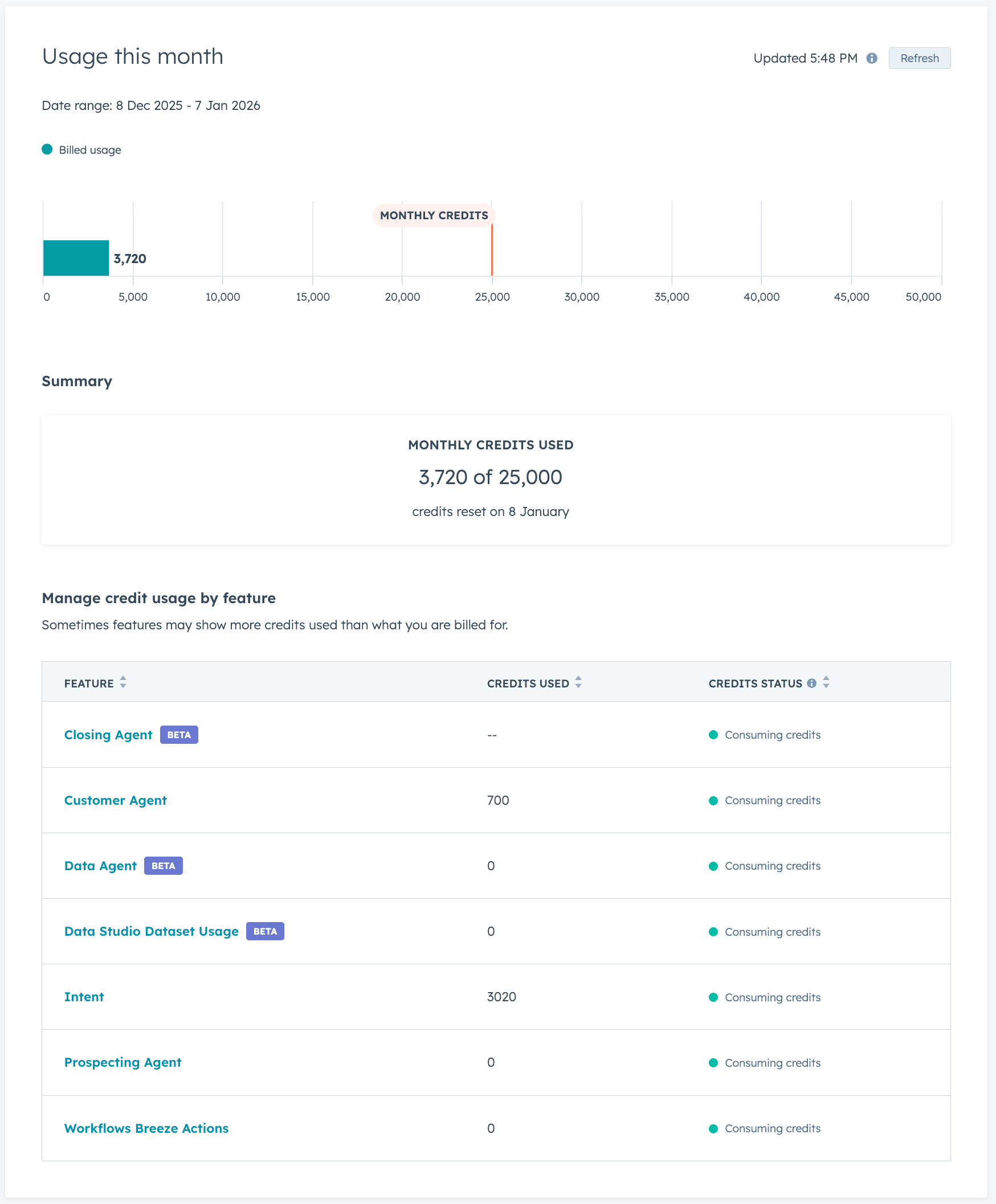
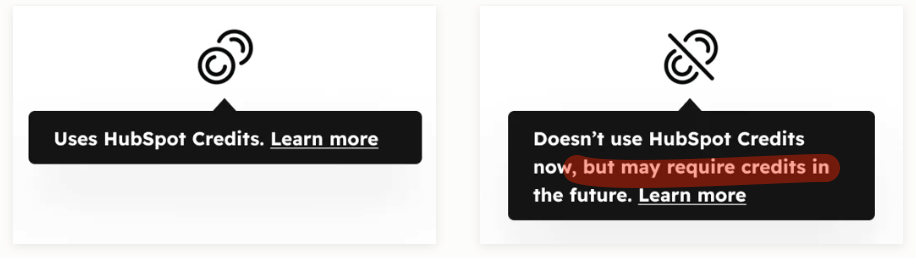
How to tell what uses credits and what does not. This is very important as you can end up using credits in the future when a feature moves out of BETA!
Inbox automation is available in two ways:
Once enabled it looks through email footers and signatures to pull out details of the contact (eg title, mobile, address, etc)
Further details in our HubShots Community course here.
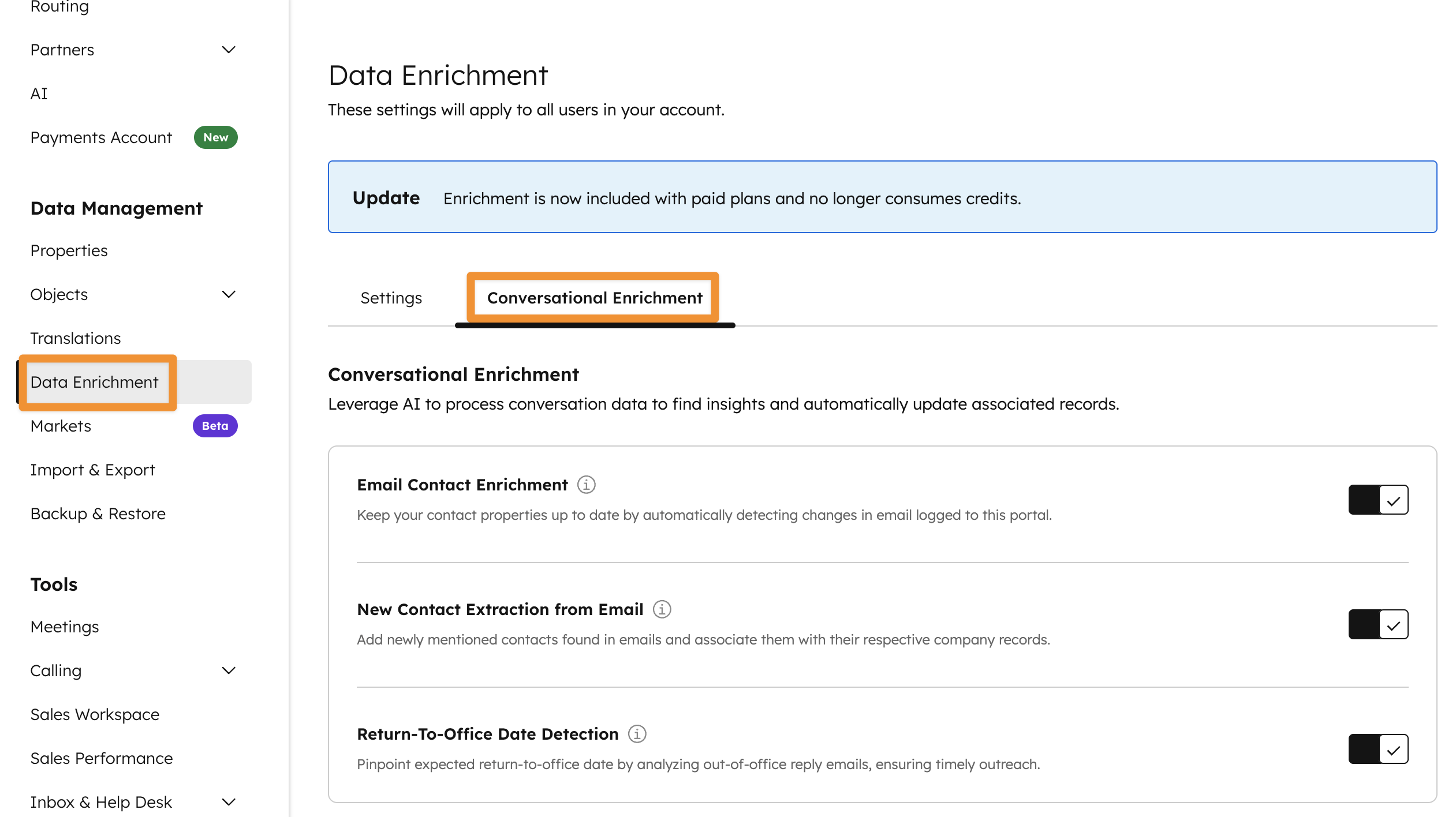
One of the nice options is the 'Return-to-office' detection.
Throughout the product eg on a contact or company record you can click to see a summary of the record. You’ll see these appearing everywhere eg to summarise emails, tickets, workflows, survey responses, etc.
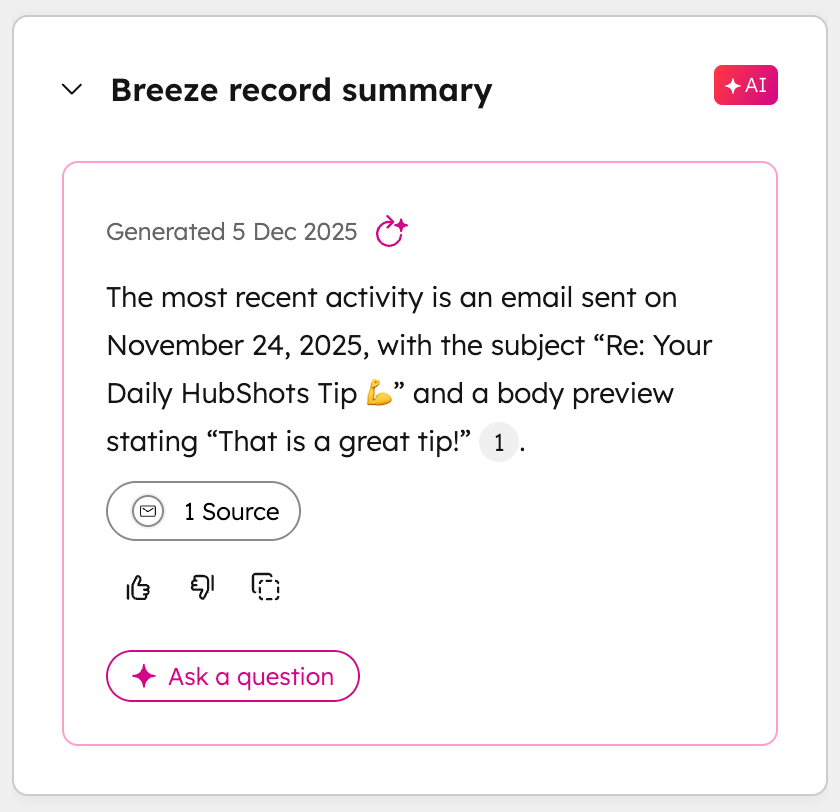
Some are useful, others are noise.
The Breeze Assistant (available from the top menu) is a general chat interface for asking questions (about anything and everything). It can search across all your HubSpot data (that you have permission to) as well as web searches etc.
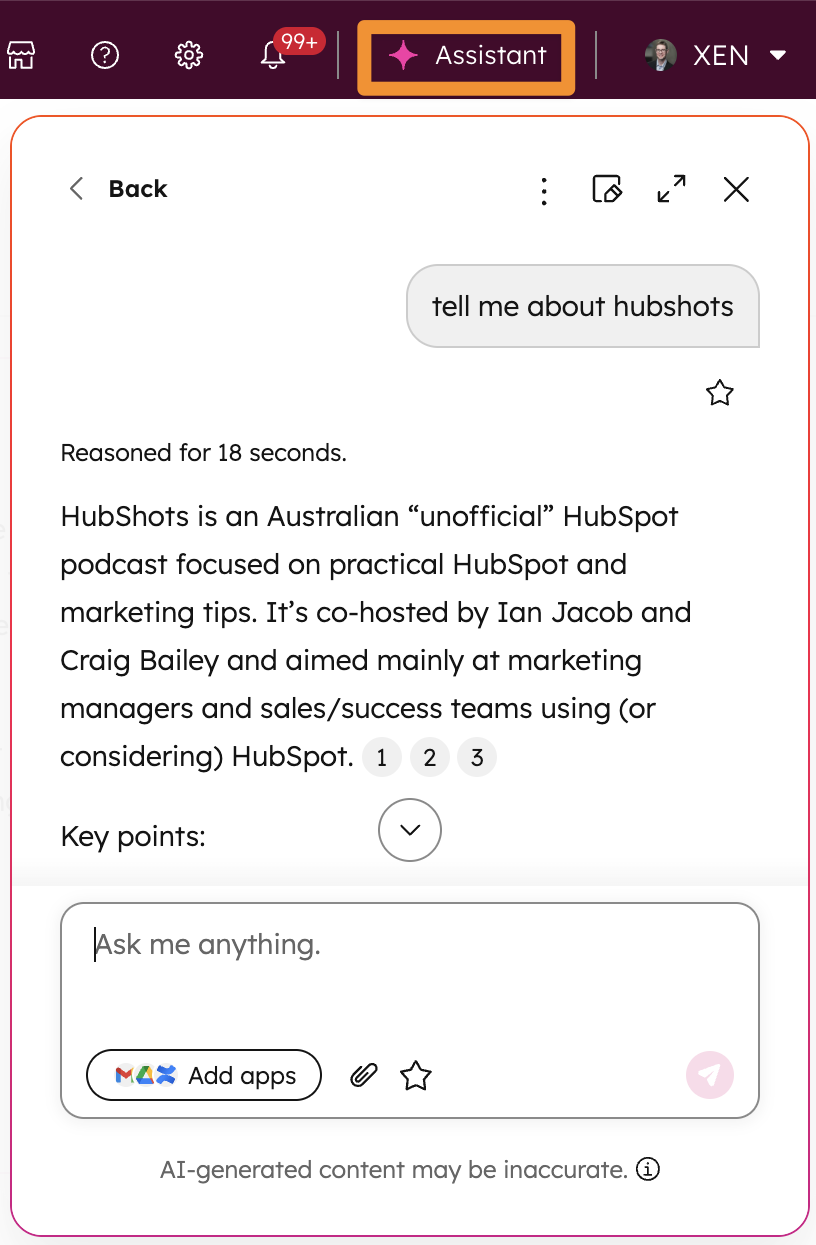
These features are also available in the standalone Breeze Assistant app.
What is AI?
This used to be a reasonable question, but these days AI is tacked onto almost everything, and there’s no real accurate answer. AI, it seems, is whatever new thing a platform wants to highlight. (There’s an old quip that AI is just what doesn’t work properly yet.)
When it comes to the Buyer Intent tool - easily one of our favourite releases in 2025 (see Shot 4 in episode 315) - you may ask what part of it is actually AI. That’s a valid question, and we’d probably mention the Signals tab, before going quiet. But let’s not get too bogged down on that.
The Buyer Intent tool is a way for you to view companies who are browsing your website and showing ‘intent’.
Intent can be defined based on:
(Note: it only shows Company details, it doesn’t show any Contact details. Any page view counts are anonymous, you can’t see which Contact was viewing the pages, only the Company they were from.)
The best part of the Buyer Intent tool is that it can automatically add new companies into your CRM, and send a daily Buyer Intent email to users.
I personally love reading the Buyer Intent email every morning to see who has been checking out our site with intent.
You can use the Research tab to filter from HubSpot (probably massive) list of companies, using your criteria (eg the list of items above), and then add the companies into your CRM. You could then assign them to users, set them as Target Accounts, etc.
I wouldn’t say this is particularly compelling just yet, especially since it is only the companies (ie no Contact details) and most businesses who would use this type of tool are probably already using Apollo, Zoominfo and other tools.
But you can see where this is headed. Give it time and I expect this Research tab to be fleshed out and become a lot more useful. And consume credits lol!
The new Signals tab adds the ability to track ‘signals’ about a company, including:
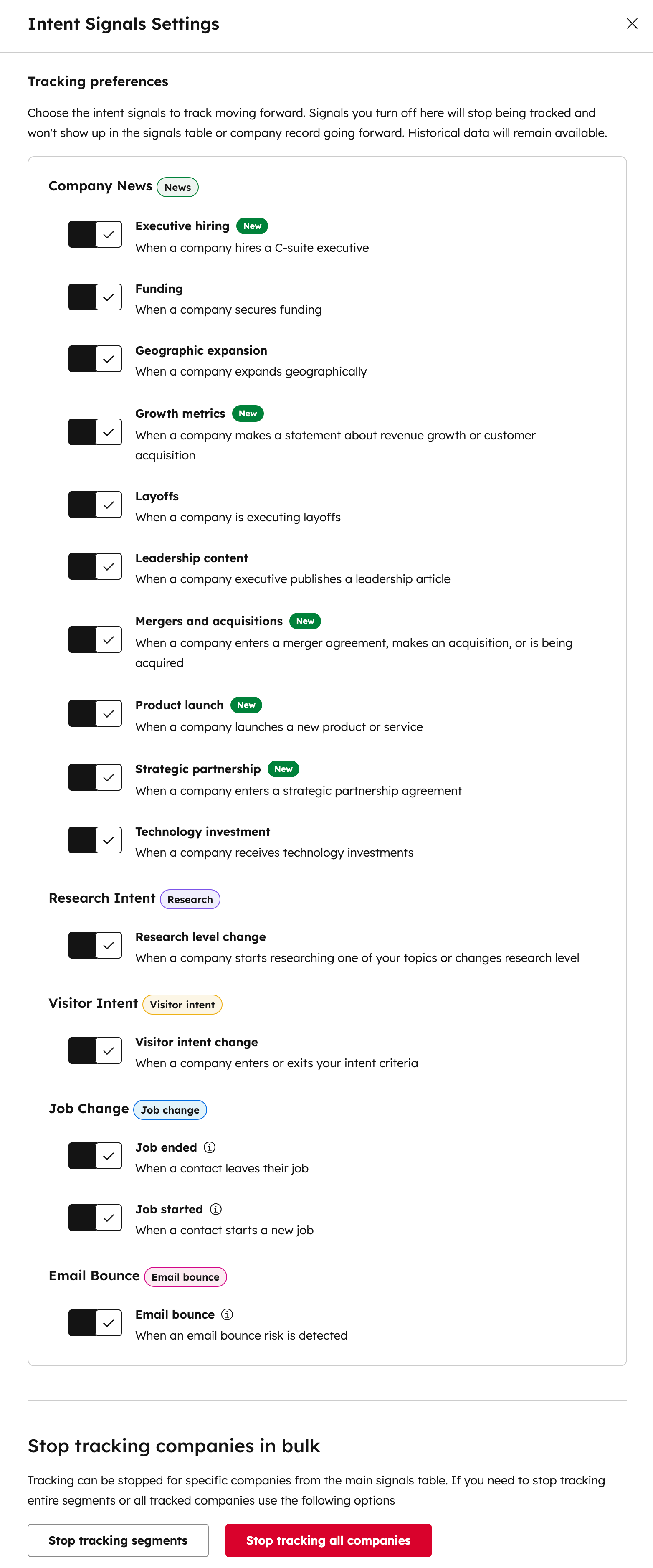
Don’t ask me how they work this out (they don’t say - see chat below) - I’m guessing there’s a fair bit of LinkedIn scraping (plus AI of course, don’t forget the AI!) - and don’t expect it to be comprehensive or complete. Your mileage will vary. I’ve noticed that US companies tend to show the best signals, whereas in Australia it is often crickets. Most of the companies I track have shown zero signals, and I’ve been running this since September.
Each company you track the Signals for will consume credits.
As an aside: The Buyer Intent tool is the largest consumer of credits in our portal.
See our Skool course and this video on our YouTube channel.

Let’s first quickly understand Assistants versus Agents. AI consultants and developers will object to the following oversimplification, but for most end-users, consider them simply as:
This can be confusing though, because even on the marketplace, the word ‘agent’ is fluid eg you can filter the ‘Agent type’ by ‘Agents’ or ‘Assistants’, so if you’re confused, you’re in good company.

Let’s review each type of agent, starting with… Agents.
As we record this there’s only 20 or so agents currently in the HubSpot Marketplace, but you can expect this to grow over time:

Here’s some of the agents we typically use from the marketplace
We also create our own custom agents, usually by cloning an existing agent and adding additional instructions, for example:
There’s only four Assistants in the marketplace:

You can also easily create your own assistant. For example we created a simple assistant that helps us write Weekly Client Emails (by pulling key items from all the emails and notes that have been logged against a company).
Once added to your portal, you can then include them in the global Breeze Assistant window:
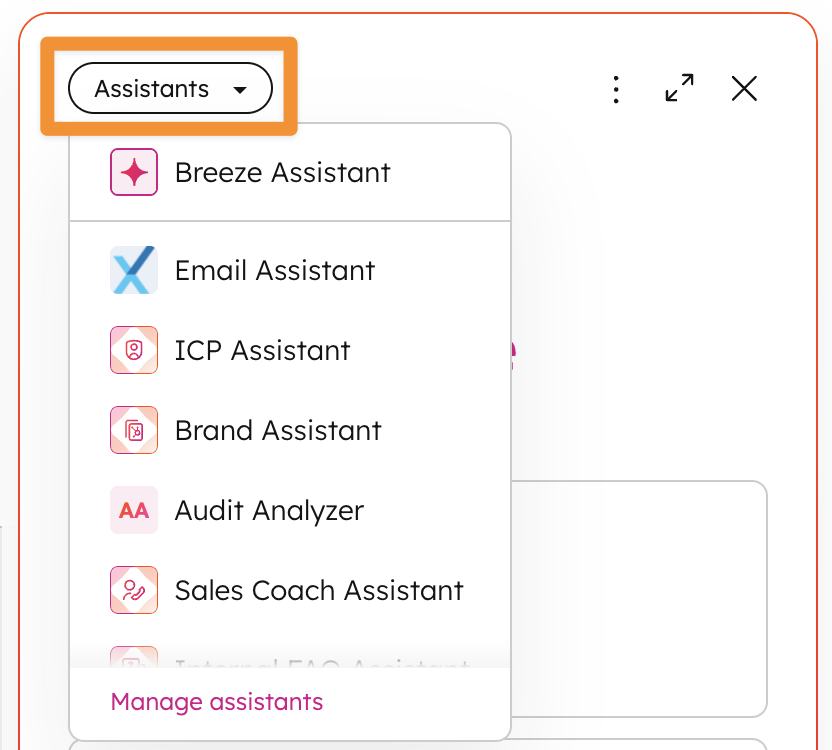
Of the Agents that HubSpot has provided there are currently three that have been deeply expanded and customised for portals. They are:
These have been built out and deeply integrated into the portal.
There are two main ways that agents can be automated:
Workflows are of course where all the interest it, and HubSpot has been incrementally expanding the AI actions set in workflows. Here’s how it currently looks (as we record this):
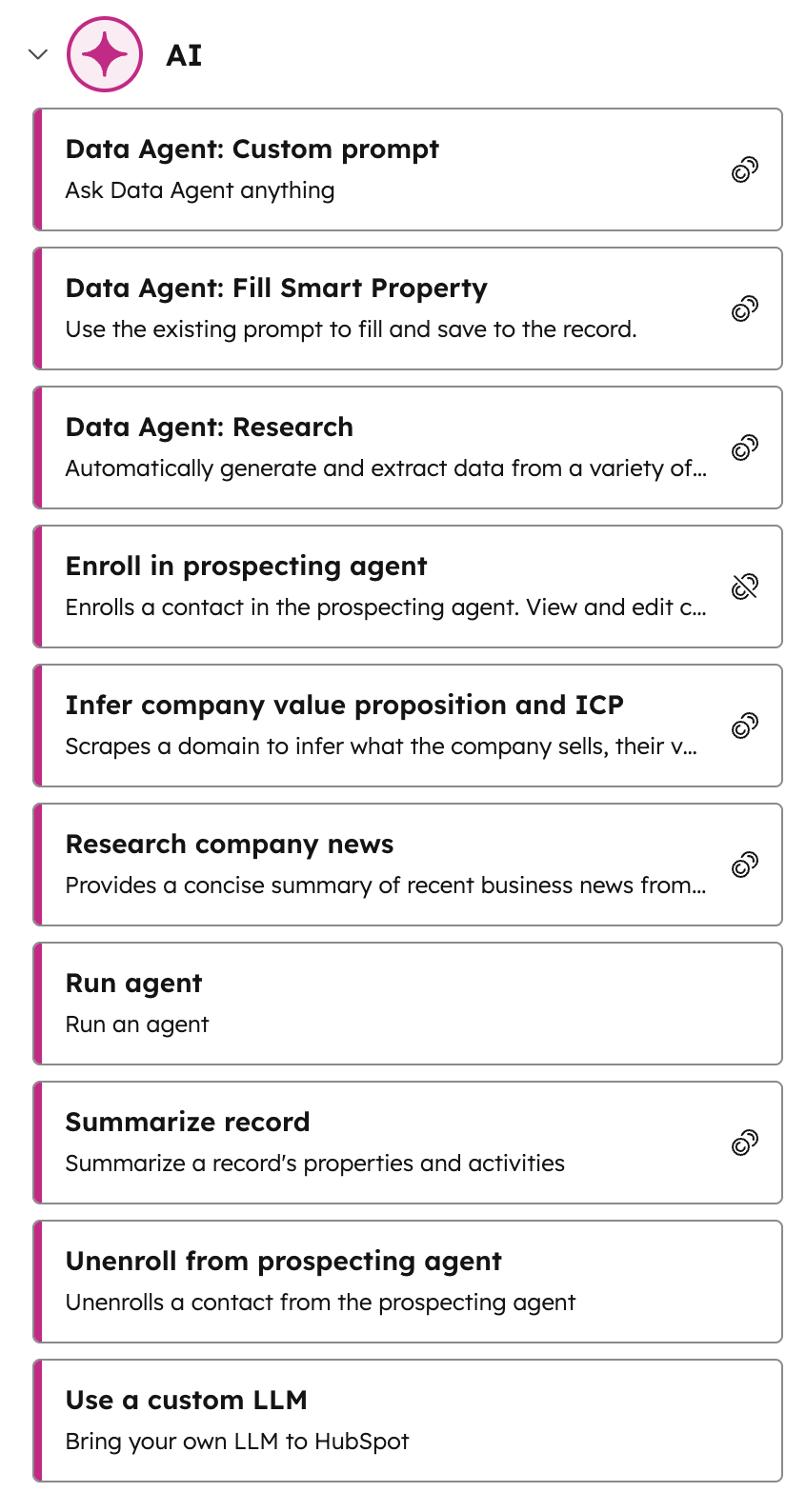
There are specific actions eg ICP and Company value proposition, summarising records, etc
You can also call your own LLM (eg ChatGPT) using the ‘Use a custom LLM’ action (more on this later when we chat about integrations).
And you can use the Data Agent with a custom prompt (eg we use it to summarise a Playbook that has just been submitted)
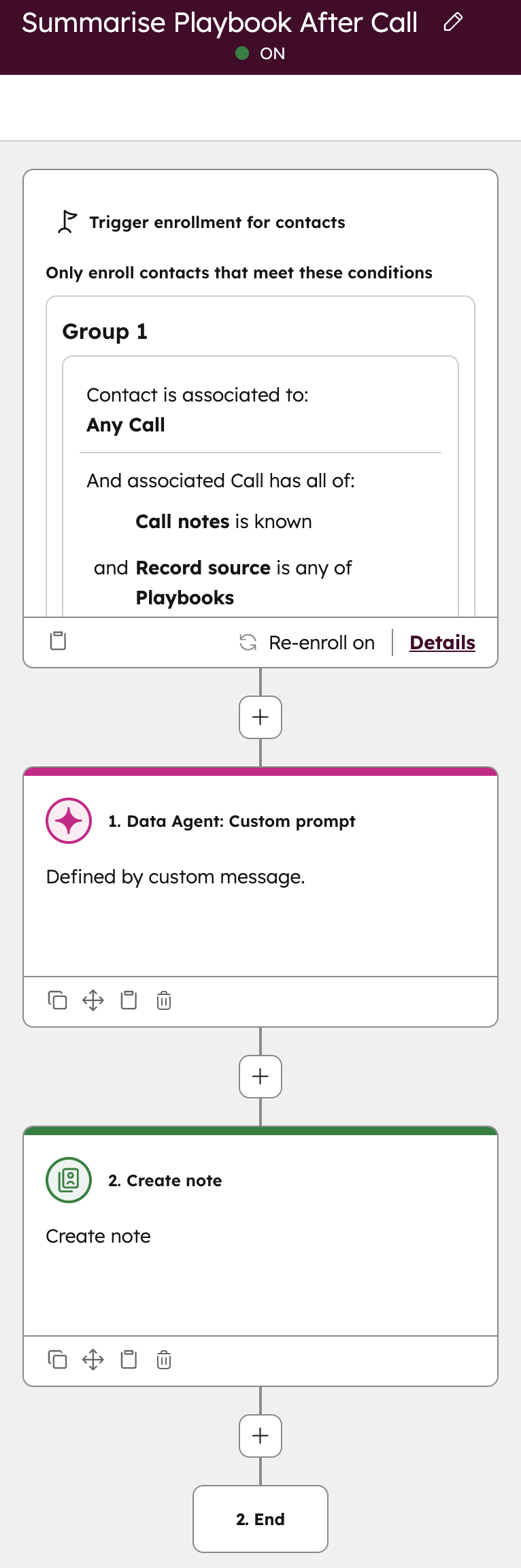
But the big unlock is the ‘Run Agent’ action which allows you to call any of your Agents (that have been added into your Breeze Studio), including the default Marketplace agents, and your own Custom agents.
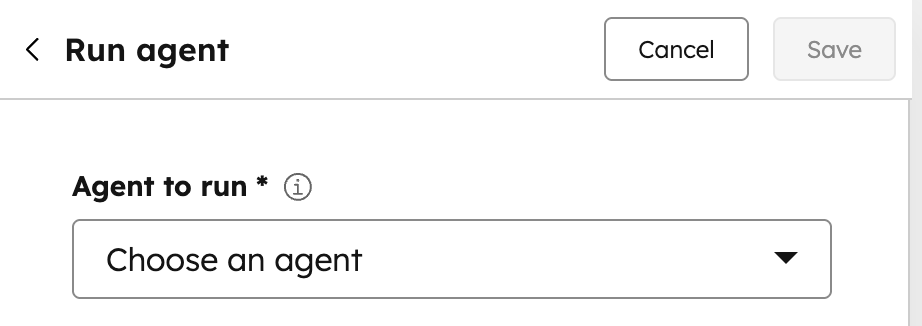
Calling from a workflow is a good experience, simply select the appropriate agent and use personalisation tokens to feed the agent as required (Eg a company name or ID, etc):
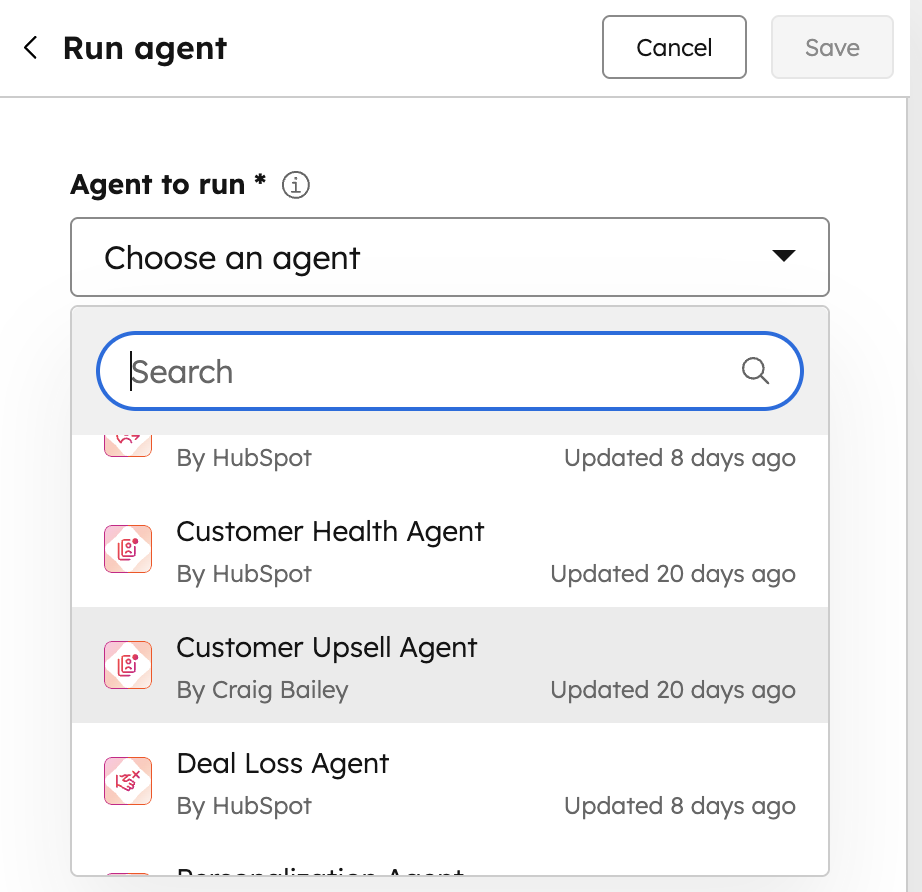
I’ve selected a custom agent we created, that builds on the default HubSpot Upsell Agent.
You can use associated object records, for example this agent is being called from a Contact workflow, but is pulling the associated company record ID to use in the agent:
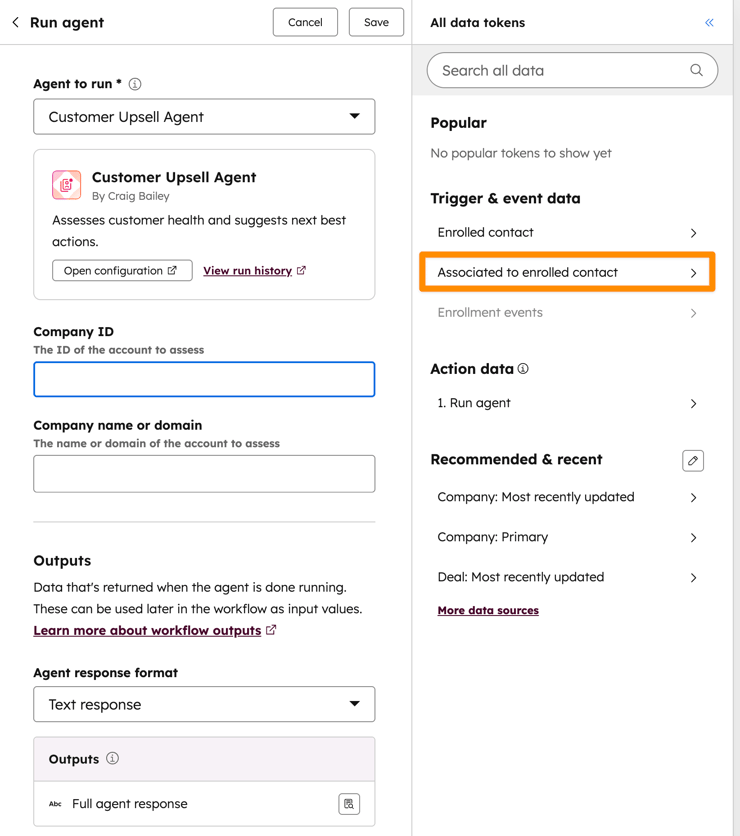
Often the token to use is available from the ‘Recommended and Recent’ list, but if not simply choose the associated object:
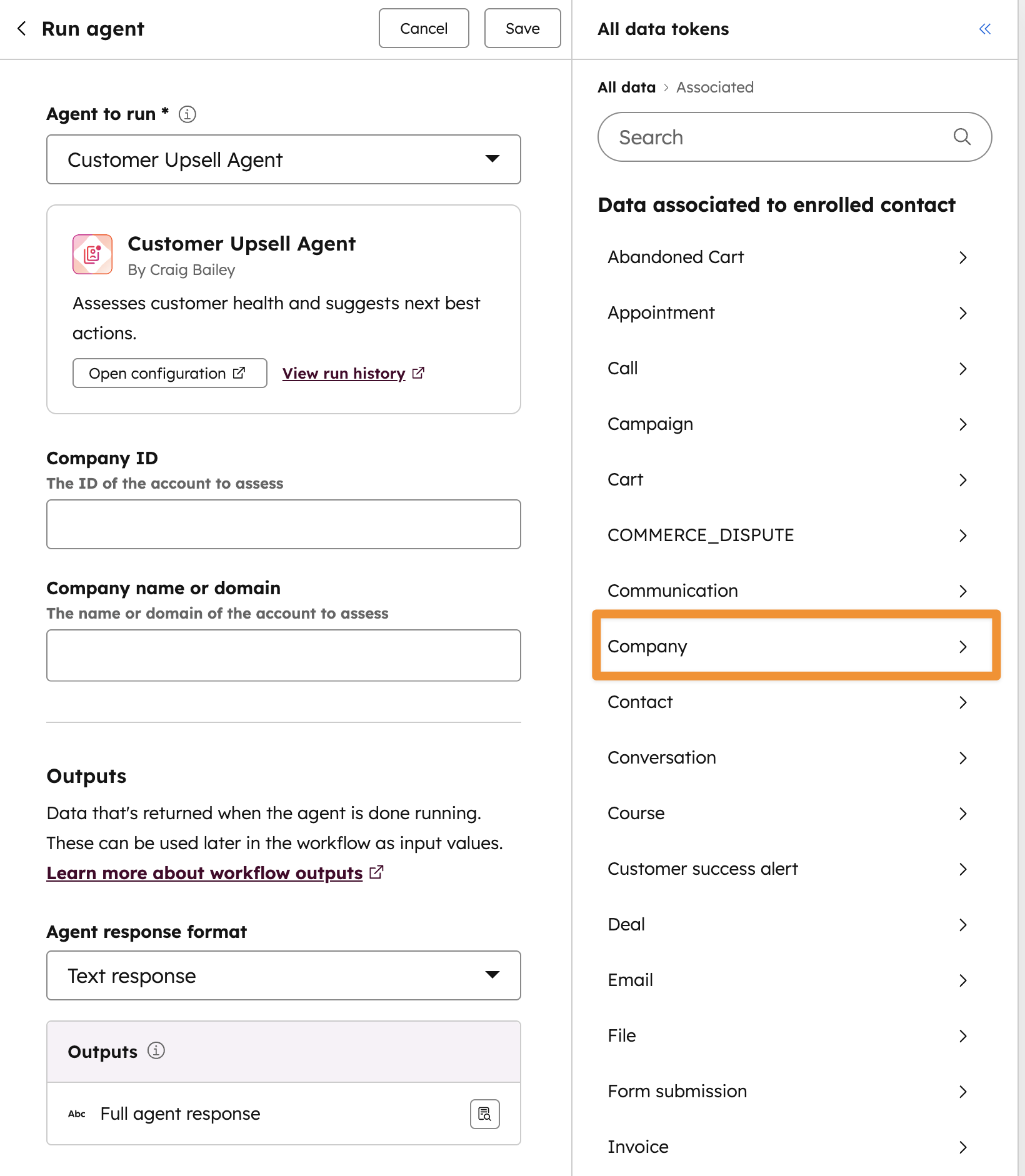
And then find the correct token to insert:
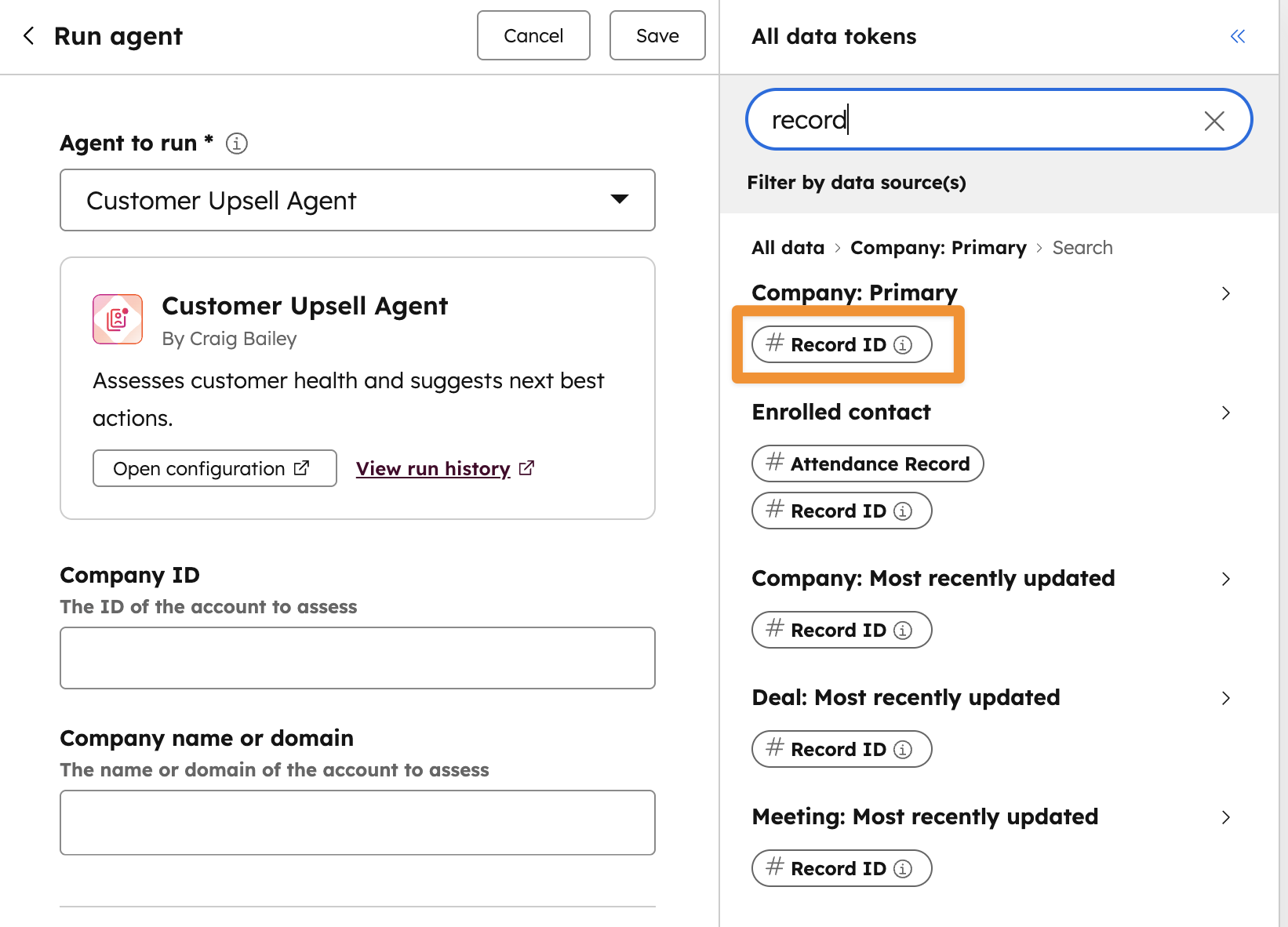
It will format the token appropriately:
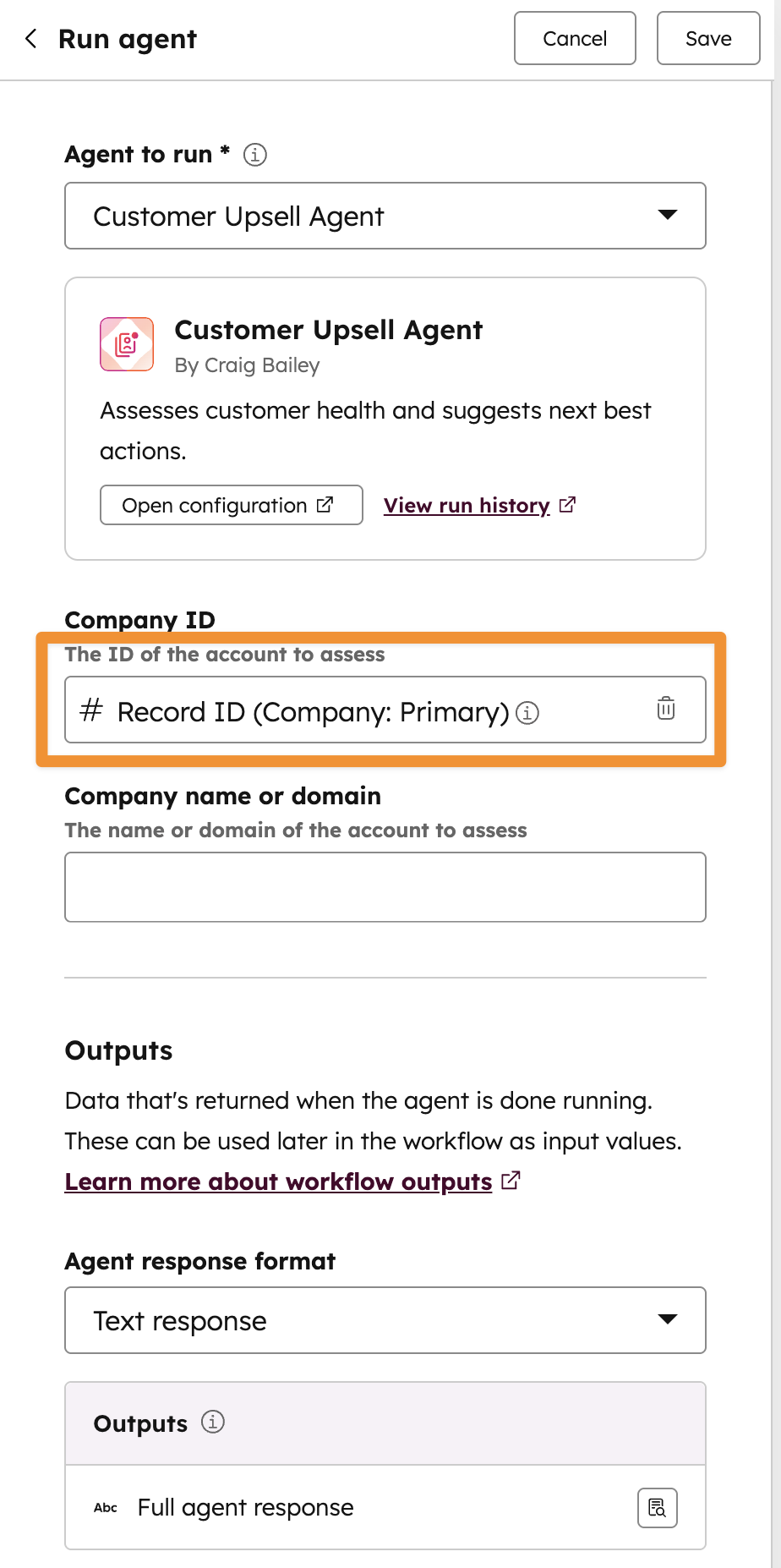
Repeat for any other tokens required (eg company name). Save the Agent action.
Next add an action that ‘Adds a Note’ to the record and choose the Action data item you wish to insert into the note:
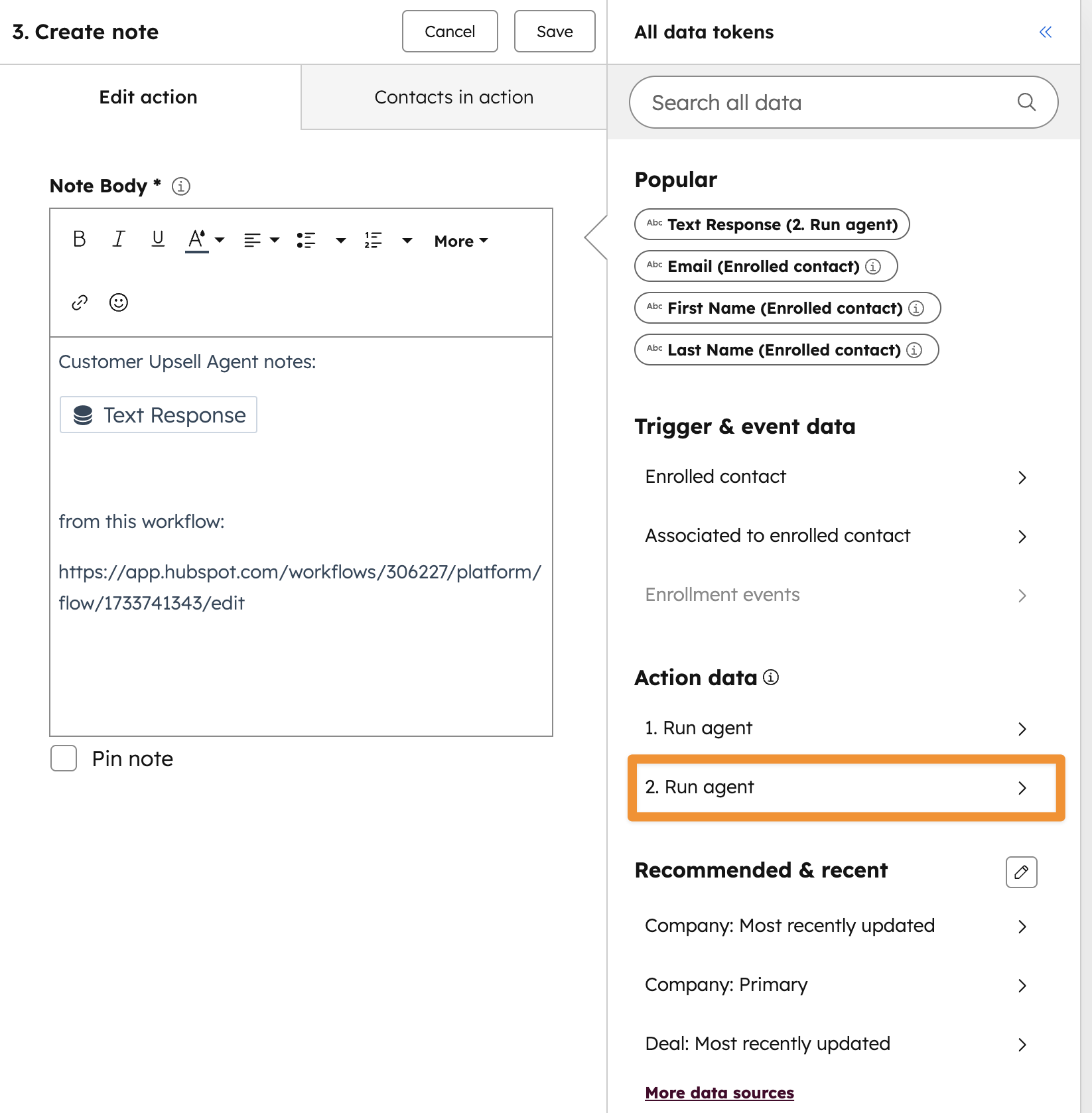
Save and you are good to go. The agent will be called as part of the workflow, and then the output from the option will be added as a note.
Simple scenario:
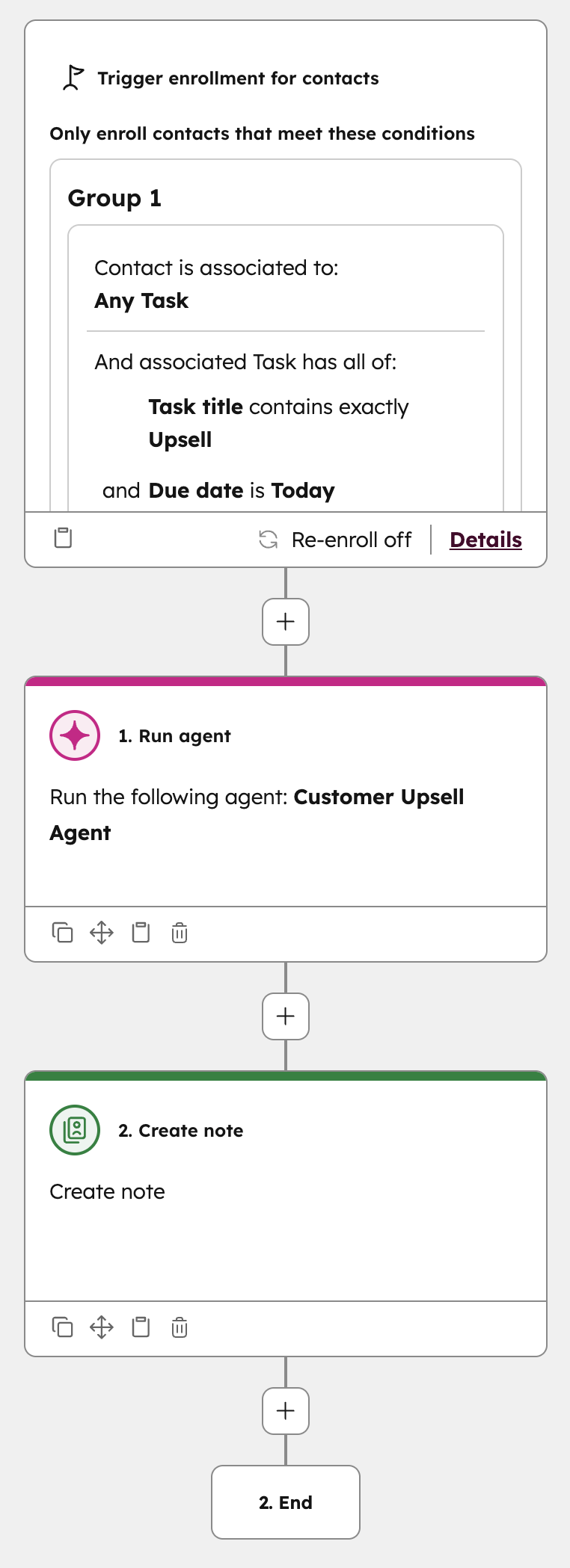
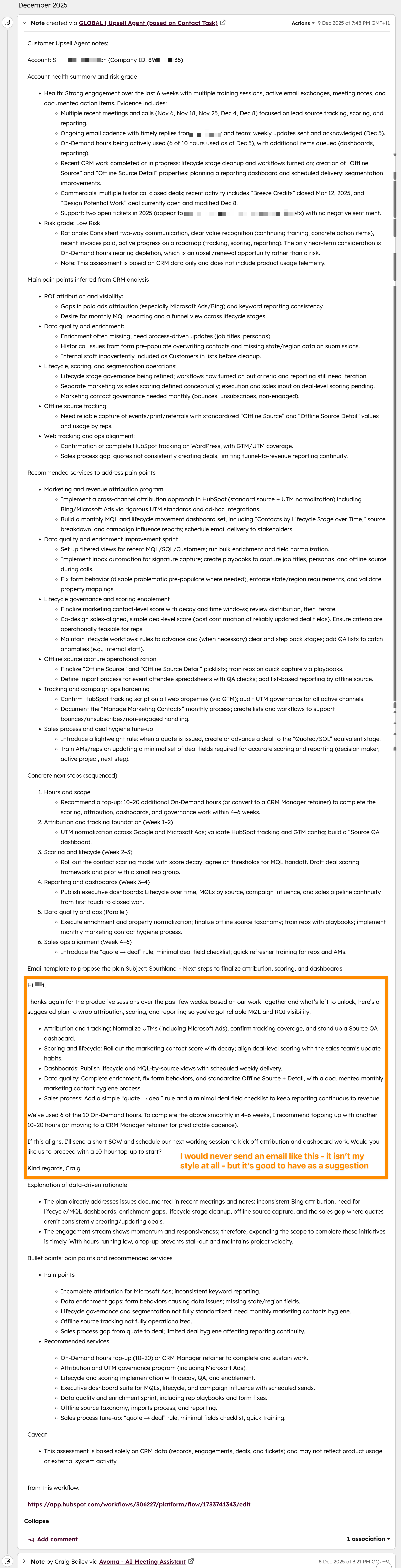
It will create a note like this (full hi-res version here) at the top of the contact record:
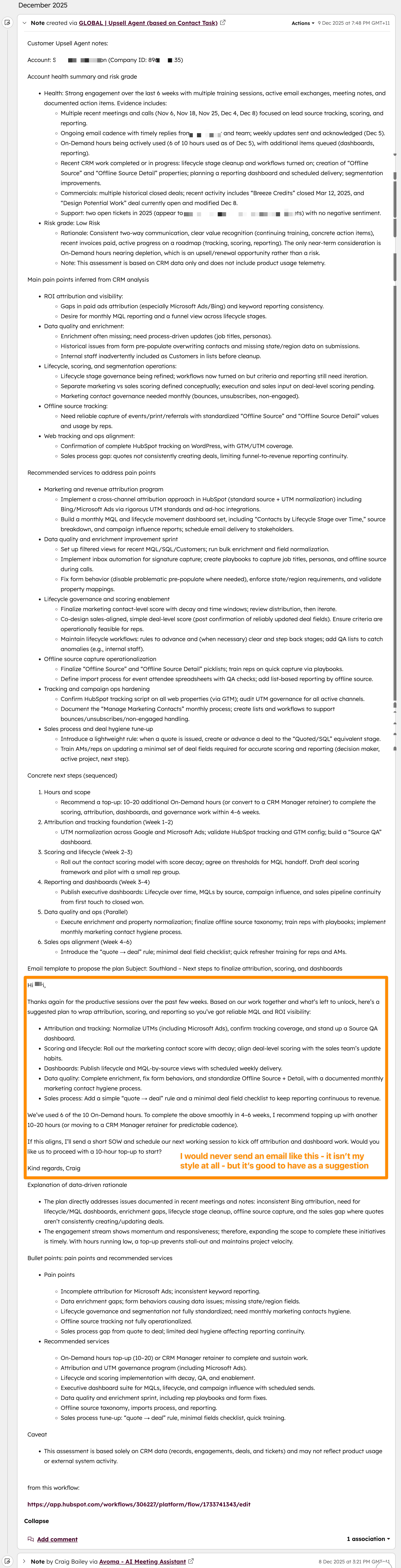
Note: you should check everything it creates of course. There’s often some poetic license (a la hallucination) and misunderstanding of pain points and what the actual priorities are. But for me the main benefit is that it often resurfaces topics, problems and questions that I’ve long since forgotten.
And if you find the note to be too long you can always tweak the prompt in the agent to focus on brevity, etc.
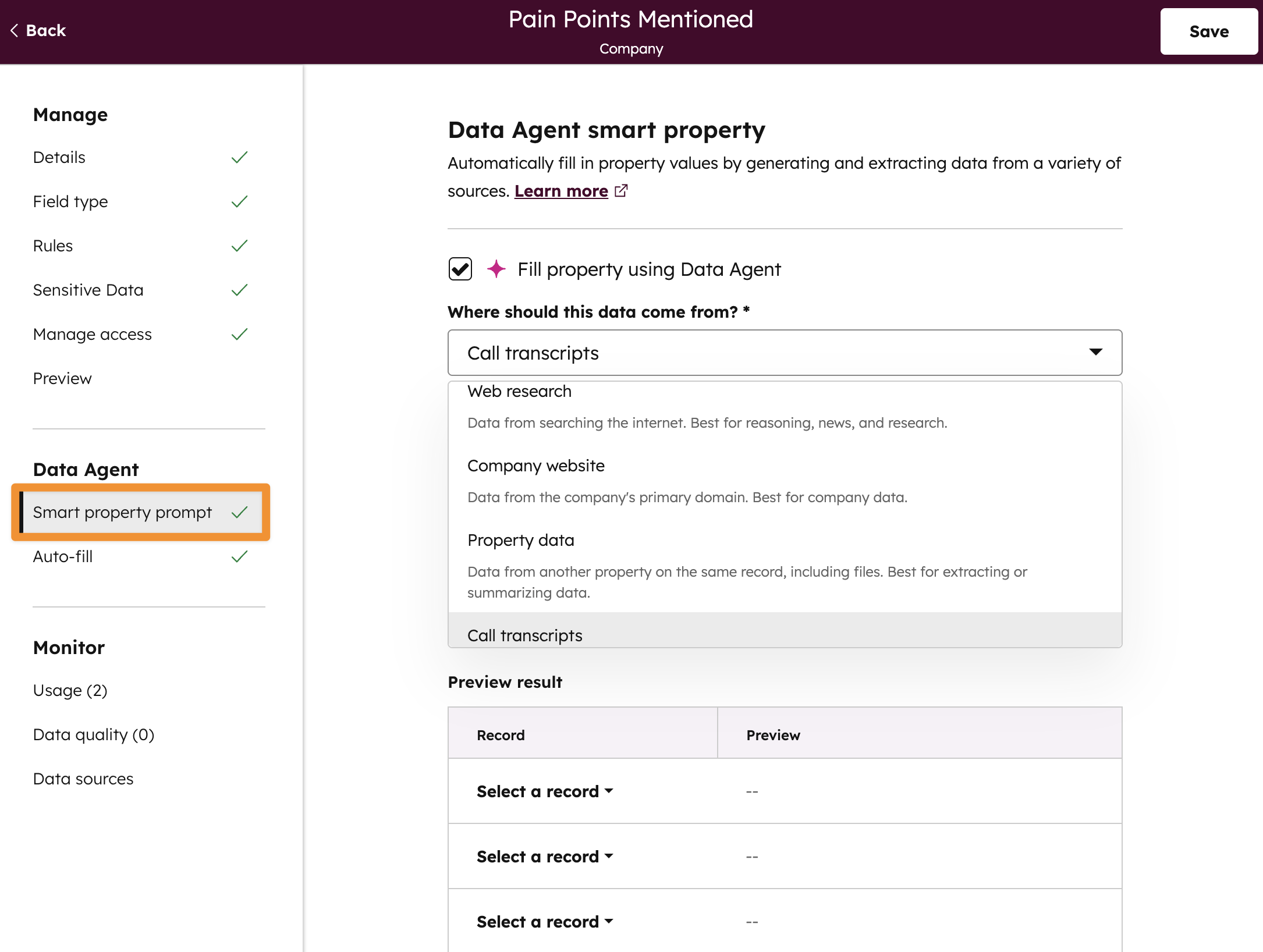
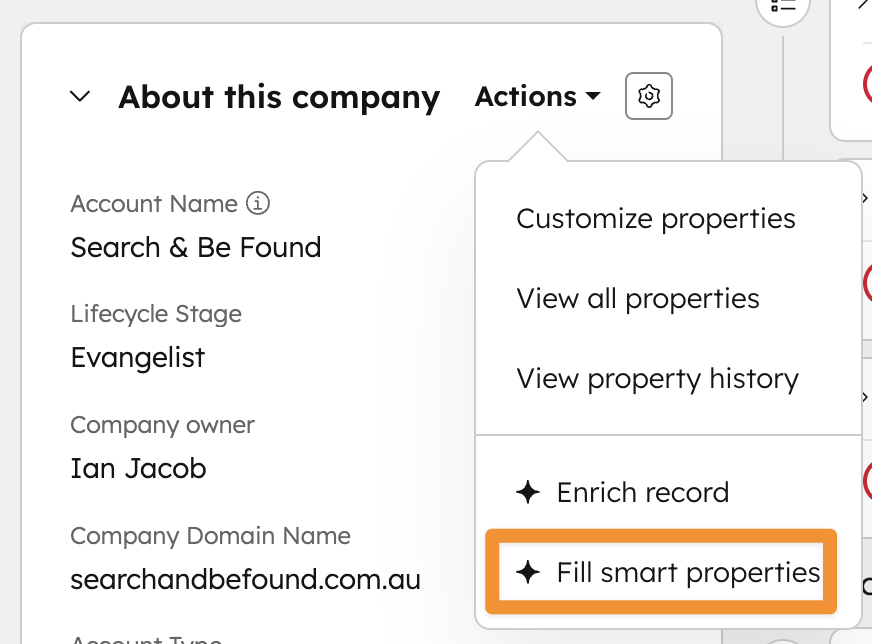
You can fill smart properties individually on each record, or in bulk, or automatically from Data agent.
Have a look at this helpful knowledge base article about creating and using smart properties
(Strictly speaking this isn’t limited to Service Hub anymore, but it still sits under the Service menu - as we record this)
Customer Agent is one of our favourite tools in HubSpot this year (see our previous episode for our full list of favourites).
Customer Agent (at first) feels like a Chat Flow, which may potentially put you off using it. However, it is much more.
For starters, since it is using an LLM it can understand what people are asking (compared to a chat flow that did basic keyword matching).
It is trained on knowledge sources (Eg your website, knowledge base, files, short answers, etc) and understands your business.
It can support a range of channels, including chat, email, messenger, WhatsApp and now voice (in an American accent!).
The most important process in setting up Customer Agent is to define the knowledge sources it uses to train its model:
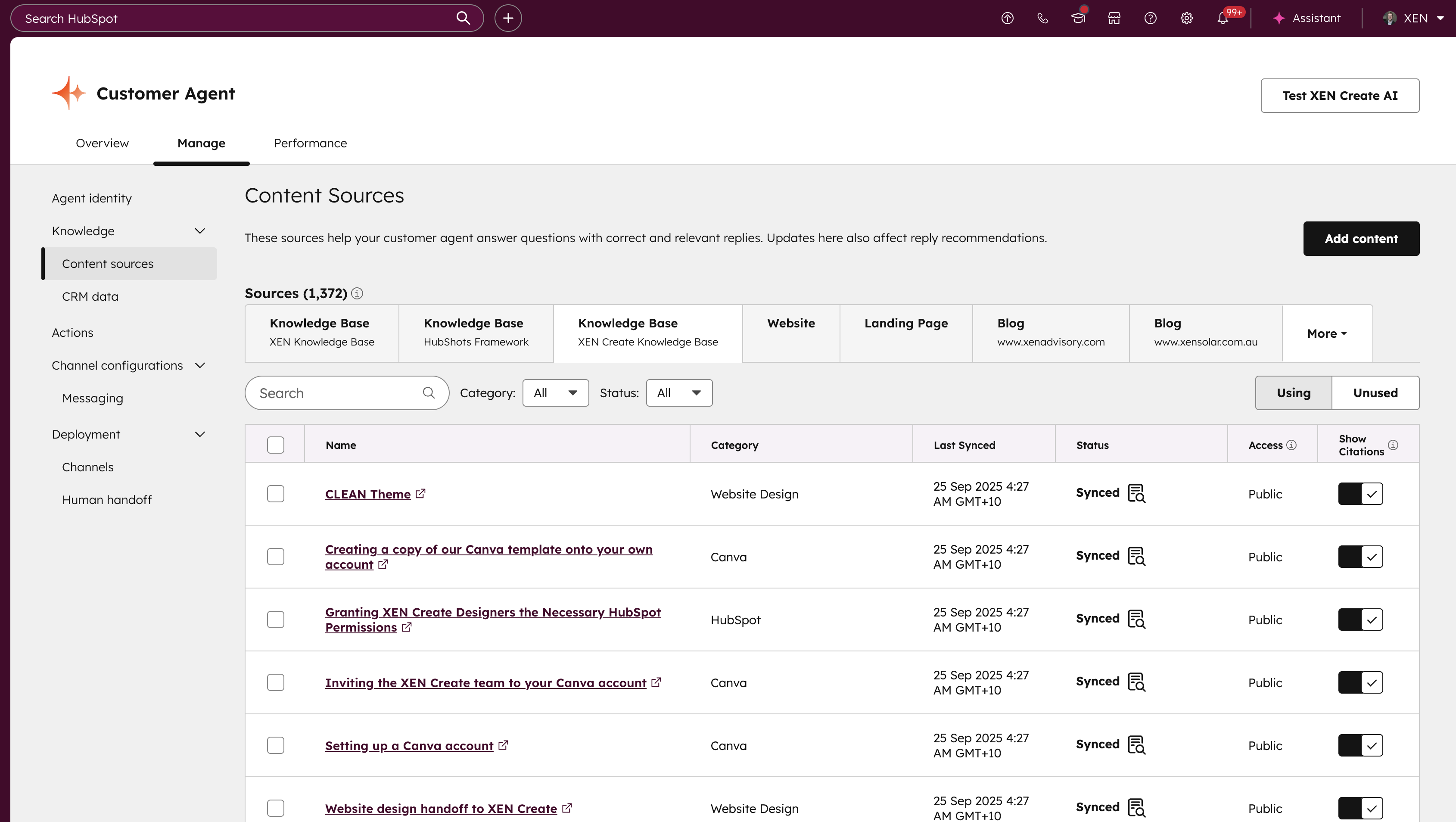
Knowledge gaps

So far we’ve focussed on using the AI tools and features within HubSpot.
But what about using your existing AI tools with HubSpot?
You can:
There are a number of AI integrations available from the HubSpot Marketplace:
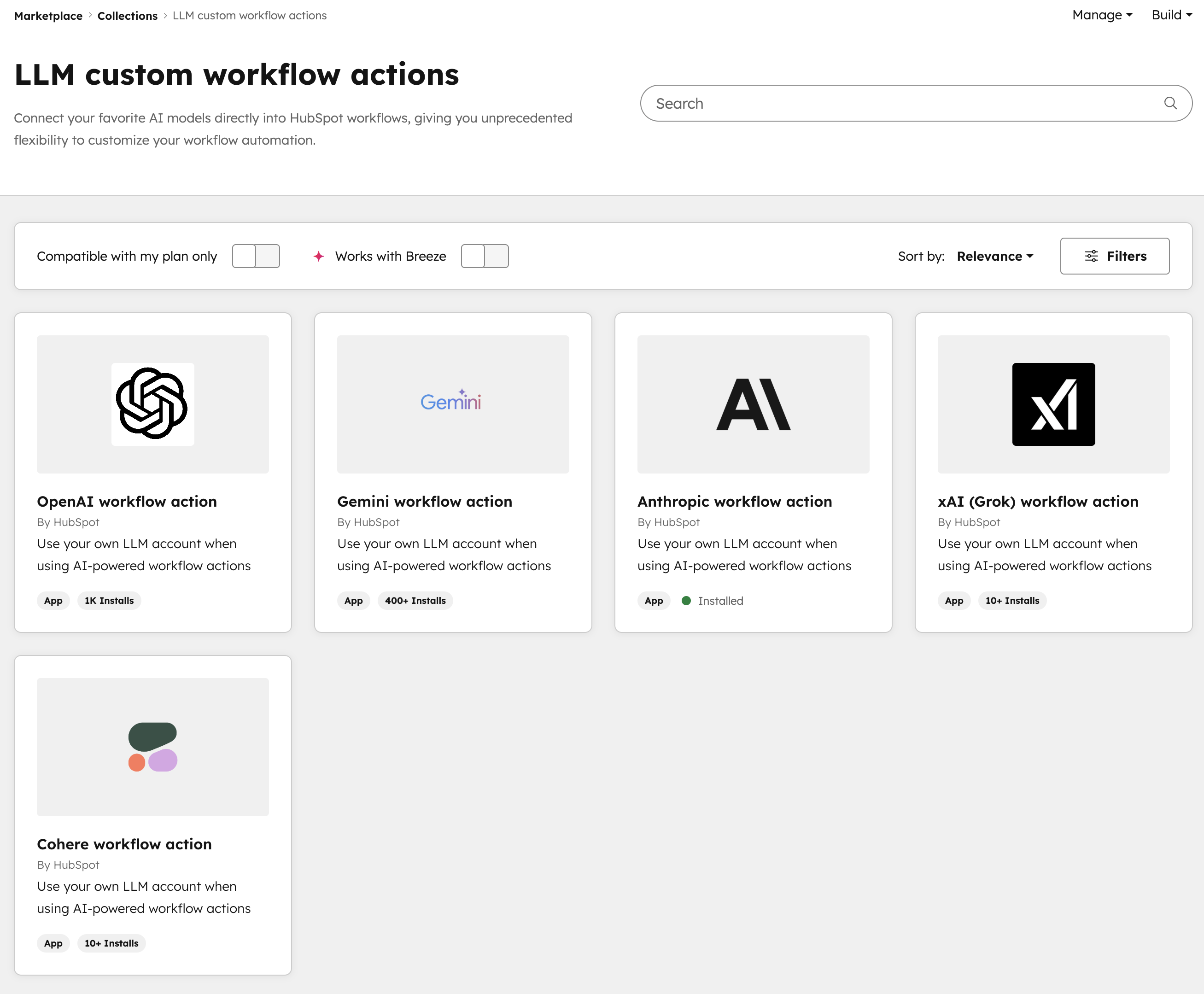
Once added, they can be called from workflows using the ‘Use a custom LLM’ action, or via Integrated App actions.
However, when setting these actions you need to set the model details as well:
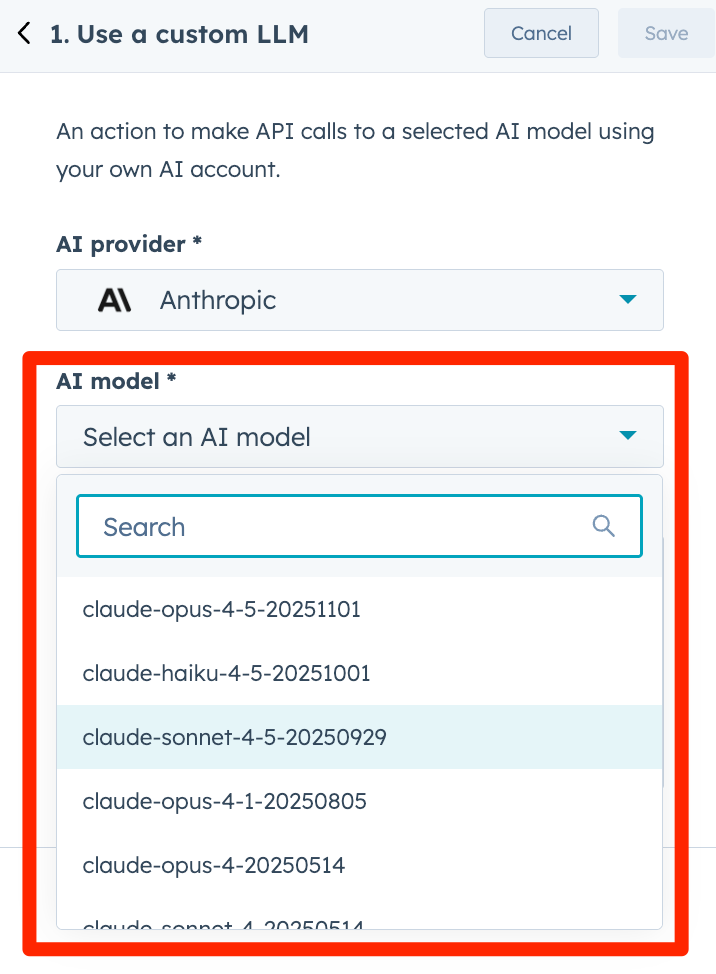
This also creates a maintenance task if models change (or are sunset) - you need to go back into the workflow action and update it.
This has been rolling out over the past half year, first with ChatGPT, more recently with Claude and Gemini.
“Have already recommended the pod to several people in my network. I love your grounded and honest perspective calling out when some hubspot features or concepts aren't perfect but you suggest ways around that. A good example was the recent review of Loop Marketing. I appreciated your practical advice and assessment here to counter the Hubspot Loop Marketing 'launch glitter.' Also appreciate that you're both in-market here in Australia. Great content, thank you!”
The above shots have covered the main AI tools within HubSpot.
But AI is touching every feature of HubSpot, even if it’s just to suggest a description for something you create (eg a segment or workflow).
You’ll see AI fields popping up in just about every screen:
It’s also providing guidance on getting started eg you can tell AI what segment you want to create, or what you want to trigger a workflow with, or what report you want to create, and it will get you started.
But be wary, we often see overly complex outputs from these ‘suggestions’.
Some broader AI related reading:
You can access the full course content in our HubShots Community (join the waitlist here).

Would a quick HubSpot related tip in your inbox every day be useful? If so, sign up here.
Download a copy of the HubShots Framework A3 PDF poster (recently updated with colour coding and more).

Connect with HubShots here:
Connect with Ian Jacob on LinkedIn and Craig Bailey on LinkedIn plus check out his personal YouTube channel.
HubShots, the podcast for marketing managers and sales professionals who use HubSpot, hosted by Ian Jacob from Search & Be Found and Craig Bailey from XEN and XEN Create.
HubShots is produced by Christopher Mottram from Podcastily.
We record using Riverside.fm (<= affiliate link)
Please share this with colleagues - it helps us improve and reach more marketers.
In this edition we dive into a complete guide to integrating, managing and reporting on paid ads in HubSpot.
In this edition we dive into, INBOUND 2025 Reflections, HubSpot’s Loop Marketing Playbook, what is it, and why, and more!
This episode we dive into high impact updates for sales, marketing & services teams, based on the findings of our HubSpot Updates that Matter...